
Beppu Tower
A pink-lit tower against a grey evening sky, played on a single violin.
- Violin
- Major
- Slurred
- 4/4
- 120 bpm
Pictaurial scans any photo on your iPhone or Mac and plays it as a unique piece of music – a Photune.
Coming soon for iPhone and Mac
There are no hard and fast rules – experiment with the settings, play with your photos and, most of all, have fun.
Choose any picture from your Photos library.
Pinch and drag to frame the part of the photo you want to hear.
Pick instruments for up to four sound slots – slot 1 is a must.
Watch the cross-hairs scan your photo, and tweak the scan pattern, key and tempo as it plays.
Save your Photune, record it as audio, or make a video for TikTok, Reels and Shorts.
Download one of these on your iPhone or Mac and open it in Pictaurial to hear it – the photo, sounds and settings all come with it.
A pink-lit tower against a grey evening sky, played on a single violin.
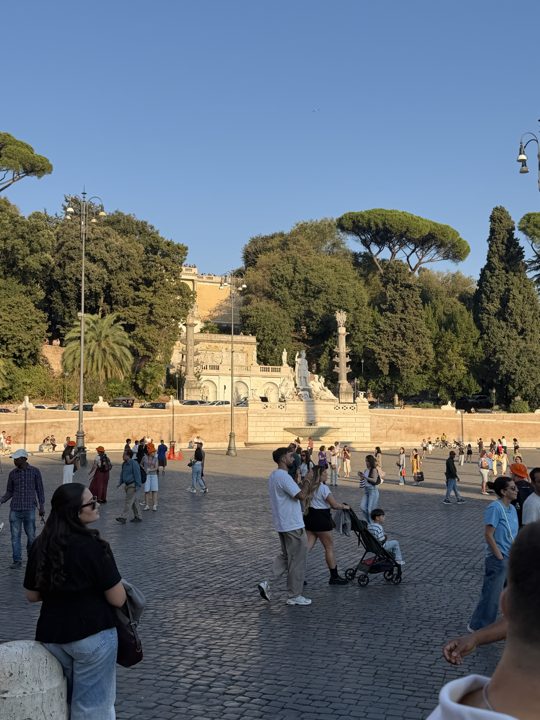
An afternoon in a Roman piazza, turned into a moody harmonica tune.
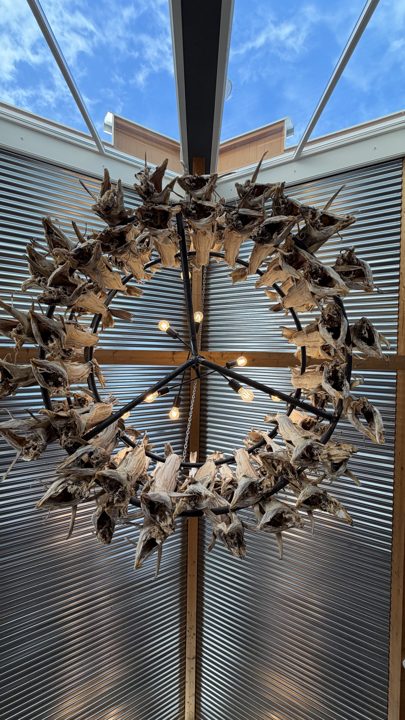
A chandelier of dried stockfish, scanned with piano and synth drum.
Opening a Photune: on your iPhone, tap the download, then tap the file in the Files app to open it in Pictaurial – or move it to iCloud Drive › Pictaurial › Photunes and choose Load a Photune in the app.
Look out for the (i) symbol in the app too – tap it for help on any screen.
A Photune is the music Pictaurial creates from a photo. It's saved as a single file containing the zoomed and constrained image, the sounds and all the timing settings, so it sounds exactly the same whenever you – or anyone you share it with – load it.
You must choose a sound for Sound Slot 1 before anything can play. If you see a red warning above the Play, Record and Stop buttons, slot 1 is empty – tap Sounds and pick one.
There are four sound slots. Each sound file contains the 128 standard MIDI instruments – piano, strings, organ, brass, choir, drums and more – and each file has its own variations of them.
Slot 1 must have a sound; slots 2–4 are optional. You can use any combination, even the same sound in more than one slot, and you can change sounds while playing or recording.
All of these can be changed "on the fly" while playing, and they're saved with your Photune.
Yes. Zoom in on the area you want first. While playing, tap Pause and you can move the cross-hairs anywhere – handy for skipping areas of the same colour – or tap and drag to draw a box that limits play to that area.
Play stops at the end of the box; tap Play to start again from the scan's start point (the top left, unless you've chosen another). Stop returns the cross-hairs to the start point and clears the box.
Yes. Choose a scan pattern – the route the scan takes through your photo:
The start button next to the pattern sets where the scan begins: any corner, the centre (Spiral and Radial), or any spot you tap on the paused photo. Changing the pattern or start point takes the scan back to its first note, and both are saved with your Photune.
After you first press Play, two icons appear at the top right of the screen: the down arrow saves your Photune and the up arrow shares it. Photunes are stored in iCloud Drive › Pictaurial › Photunes, which you can also reach from the Files app.
Just tap the file and it opens in Pictaurial. Or move it to iCloud Drive › Pictaurial › Photunes and choose Load a Photune in the app. The examples above work the same way.
Yes. Tap Record to capture the audio as a WAV file. Recording also starts the scan, so there's no need to press Play first, and Play/Pause during a recording pauses and restarts the scan whenever you like. Tap Record again to stop – recording also stops automatically at the end of the scan. You can save or share the recording, and you can change tempo, sounds and time signature while recording.
Yes. After you stop a recording, tap Share as Video to turn it into a portrait video with your photo and the recorded sound. A marker moves over the photo in time with the music and leaves a fading rainbow trail behind it, while the photo slowly zooms and drifts to follow the scan.
Videos are limited to the first 60 seconds. Make the video before you close the Save Recording screen – you can still save the audio as a WAV file afterwards.
Pictaurial is coming soon for iPhone and Mac. Check back here, or email us and we'll let you know when it's available.
Yes. Pictaurial also runs on the Mac, and everything works the same as on iPhone – click where you would tap, and drag with the mouse or trackpad. The photo, sounds, scan patterns, recording, Share as Video and Photunes all work as described above.
There's no Exit button on the Mac. Quit from the Pictaurial menu, or close the window, as you would with any Mac app.
Email pictaurial@picrosso.com – we'd love to hear from you.
Questions, ideas or a Photune you're proud of – we'd love to hear it.